How I Augment My Human-First Note Taking Process With AI
From reading and manual "chunking" of text to AI-assisted connection and visualization

‼️ This is a long one everybody. Might want to read it in stages.
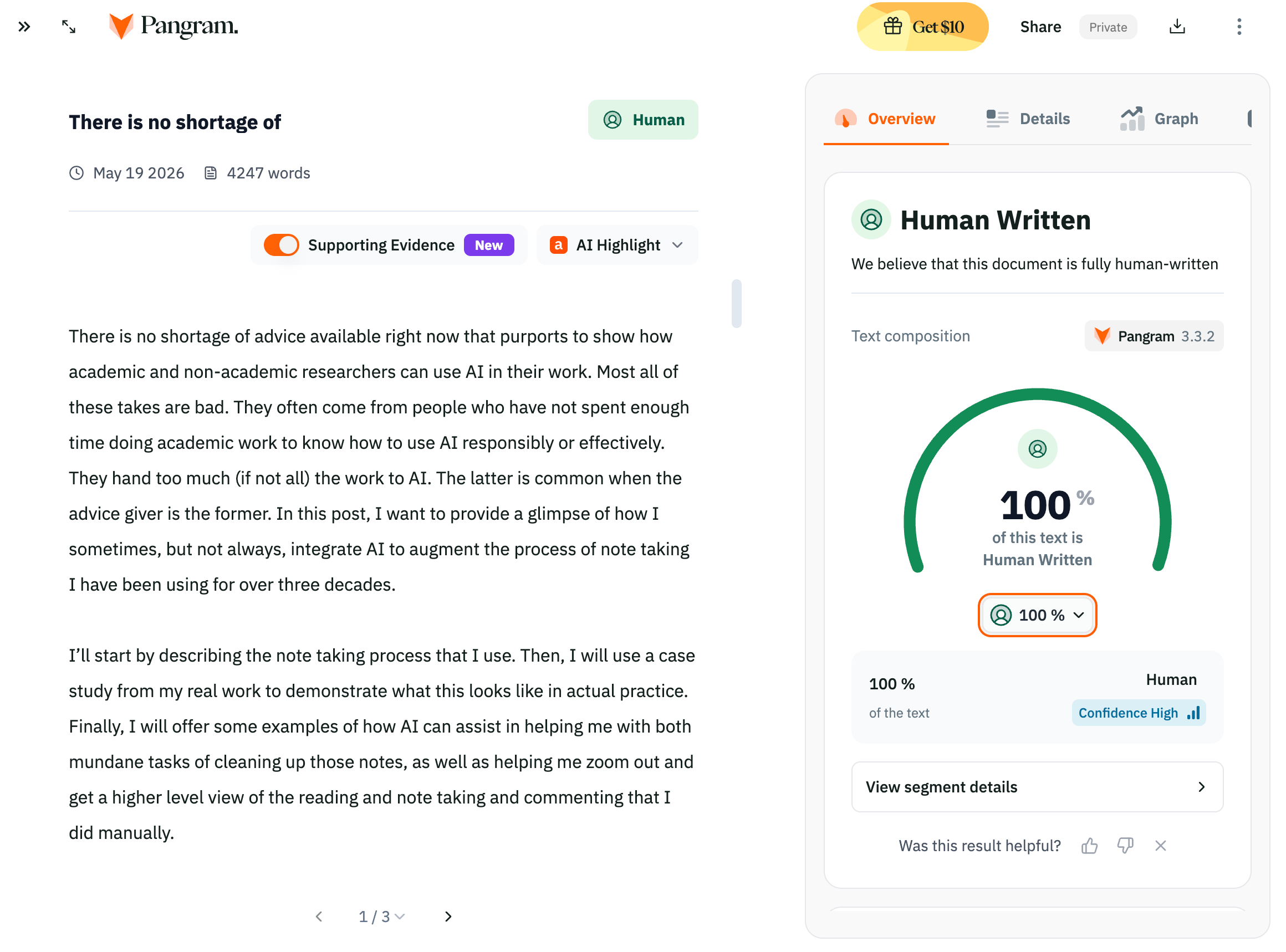
There is no shortage of advice available right now that purports to show how academics and other researchers and educators can use AI in their work. Most all of these takes are bad. They often come from people who have not spent enough time doing the work to know how to use AI responsibly or effectively. They hand too much (if not all) the work to AI. The latter is common when the advice giver is the former. In this post, I want to provide a glimpse of how I sometimes, but not always, integrate AI to augment the process of note taking I have been using for over three decades.
I’ll start by describing the note taking process that I use. Then, I will use a case study from my real work to demonstrate what this looks like in actual practice. Finally, I will offer some examples of how AI can assist in helping me with the mundane tasks of cleaning up those notes, as well as helping me zoom out and get a higher level view of the reading and note taking and commenting that I did manually.
The essential point here is that AI is used to assist and augment, not to replace. That includes helping with drudgery that is valuable but that I am unlikely to complete manually. It also includes providing new ways to query, connect, and “see” my work.
Once A Debater, Always A Debater
I learned my current method of note taking in high school from a combination of my English and history teachers, as well as debate coach (who was also my freshman English teacher). In English and history, I learned to jot down facts, arguments, quotes, biographical details, and more on 4x6 note cards with one idea per card.
Similarly, on the debate team, we learned to take excerpts from source materials like books, journal or news articles, write a short “tagline” (paraphrase) for each, and tape them onto sheets of paper grouped by topic or argument. We called this “cutting cards” (see also HERE and HERE) even though we were using tape and paper, not note cards. The term harkened back to a bygone era in debate when students kept their evidence on note cards (like we were taught to do in English and history class).
What I did not know at the time is that these methods have deep historical roots in the Western tradition going all the the way back to the ancient Greeks. It is the method not just of the humanities but has been used by scientists too. It has gone by many different names over hundreds of years.
One of those names is “commonplacing.” This refers to a technique originally taught during Greek and Roman days as a memory aid for orators. One was instructed to construct a visualization of a known physical location and assign different information or parts of one’s speech to specific places within that location. Virtually moving from place to place in one’s mind would help the orator to recall essential information.
The method of categorizing information according to “common places” was adapted to the world of writing where scholars, rhetoricians, and those dirty sophists too, would take excerpts from reading and either cut and paste or copy them by hand under common “places” (i.e. “heads” or headings, topoi, loci) on loose sheets or in bound books. Those books became known as “commonplace books.”
Some form of this method has been used by scholars, especially in the humanities, ever since. In the Middle Ages, for example, one might have kept a “florilegium,” a gathering of “flowers” (e.g. excerpts and quotations). In modern times, the advent of the individual note card led to the emergence of the zettelkasten (“slip box”) method, which involved putting one idea per card and organizing the cards by topic. It’s the method I learned in school. It was made famous by the German sociologist Niklas Luhmann, though he certainly was not its inventor. I’ve written extensively on my personal website about the zettelkasen method, its merits, relationship to commonplacing, how I implement it, and how to get started with it. (See also the chapters on zettelkasten HERE.)
“Cutting Cards” In The Wild

I am currently working on designing a new course for the upcoming fall semester. It’s a critical AI literacy course and in the early weeks I plan to offer a lecture and readings about the history of AI. Our assigned text for the course, Communicative AI: A Critical Introduction to Large Language Models, while good, does not offer as much on the history of AI as I would like.
So, I went on the hunt for article or chapter length treatments of the subject that I might assign in that week. I used a combination of traditional Google Scholar search with advanced operators, focusing on journals in the history of science and technology, Google Scholar AI search, and a Perplexity search. I filtered through the items myself, manually, skimming abstracts, looking at author credentials, and deciding if these were quality sources. If so, I clipped them to the Zotero collection I created for the course. (I’ve seen too many people lately say they are using AI to format their references. Don’t do that. It’s overkill and it doesn’t work reliably. There’s a free, dedicated tool for that task that works really well. Don’t reinvent the wheel with an LLM.)
I collected a lot more articles than just those covering history. So, I created sub-collections and started organizing the items based on the weeks in the course schedule and their lecture topics. (Lest you think I’m all clay tablets and papyrus over here, I spent a lot of time with Claude Code helping me sort out the schedule and topics. More on that in a future post. Rest assured, however, that was also an AI-in-the-loop process, standing by to assist rather than driving the train.)
So, I have a collection of sources about the history of AI. Now what?
I created an Andrey Karpathy-style LLM wiki, dumped them all into a folder in Obsidian and let Claude Code read them all write a wiki about it!
X NO! WRONG! X

You’re not “going deep” on anything if you’re letting the LLM do your reading for you! Later in the Gist, Karpathy talks about how he adds one article at a time, reading the AI summaries as they are produced, but adding that you could batch the process and have AI read a whole folder of sources for you and write the wiki.
Look, this is ingenious, no doubt. And it might work fine for whatever Karpathy is doing or whatever others are doing. But if you’re an academic researcher or educator, this is a disaster waiting to happen and you are a fraud if you rely on such a system.
As I tell my graduate students, “There’s no substitute for knowing WTF you’re talking about.” Deep subject matter expertise beats tools and methods. You only get that expertise by reading.
So, my next step was not a Karpathy wiki but reading and “cutting cards.” (<= Not X, but Y. I wrote that. Deal with it.) I did this using the excellent PDF reader built into Zotero. (If I’m reading articles clipped from the web, I use Readwise Reader. Ebooks, also Readwise. Paper books, I have a system for that too.)
I highlight relevant passages based on my current project or research questions. This is not comprehensive “coding” in the sense of qualitative methods. It’s looking for text that is responsive to my questions. Text that I feel meets that criteria—and it’s not an exact science (also this is a real human using an em dash, cry about it)—gets highlighted and I add a “tagline” (paraphrase) to the “comment” field for the highlight. If I have an actual comment, I add that to the text of the clipped passage itself at the bottom. I have a keyboard shortcut (“/c” that expands to **COMMENT:** and I add my thoughts. This renders as bolded markdown once it all gets exported to Obsidian.
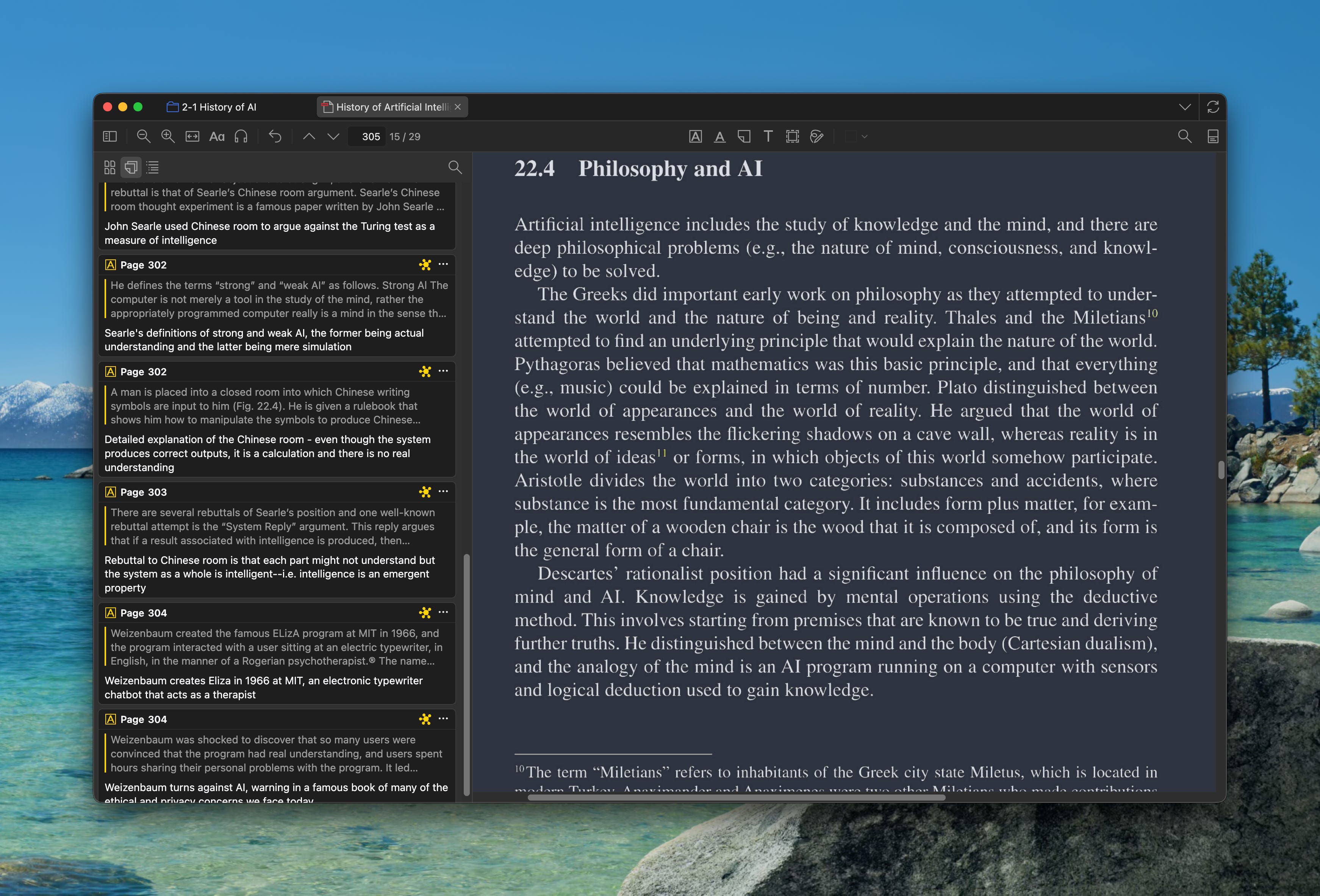
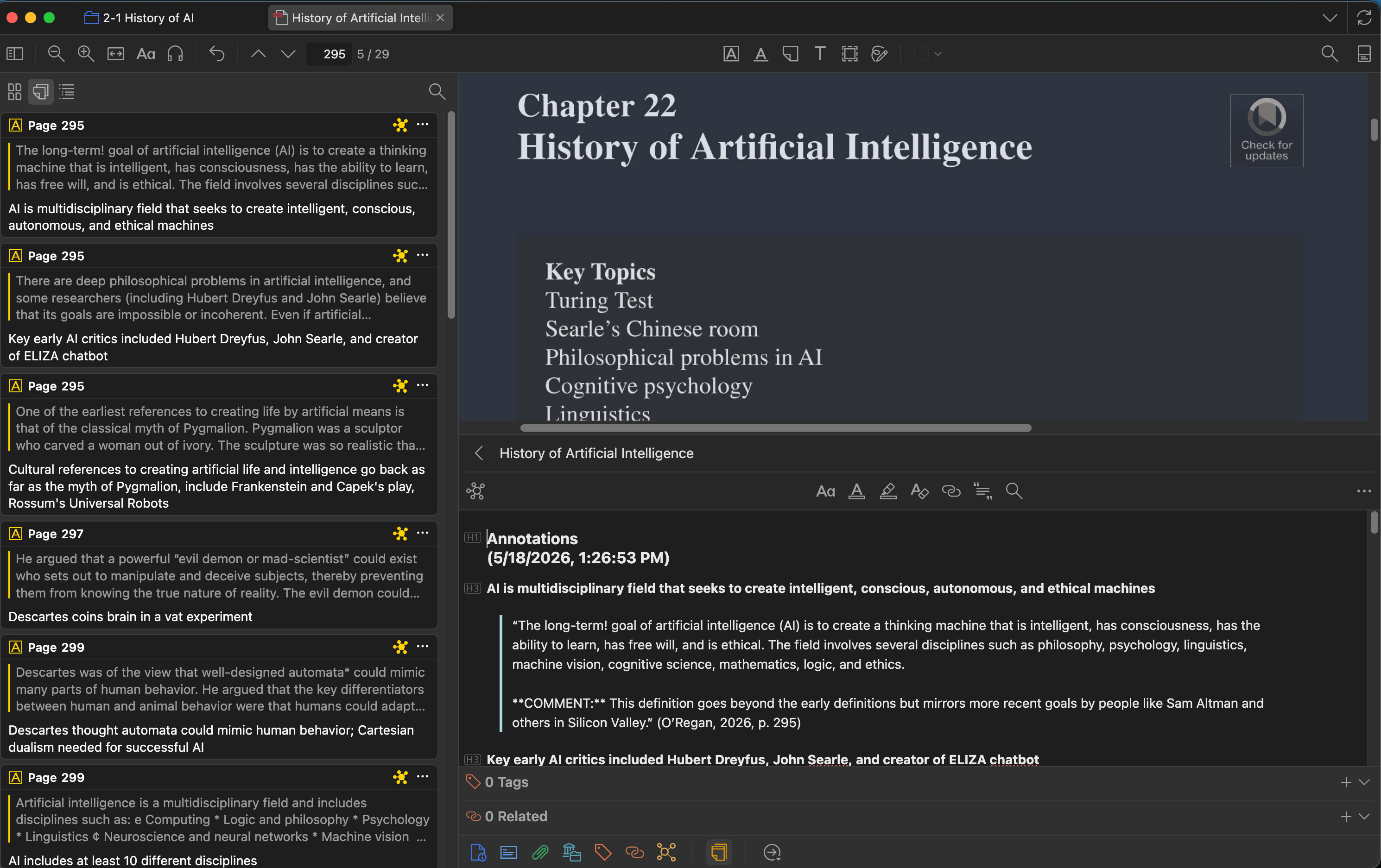
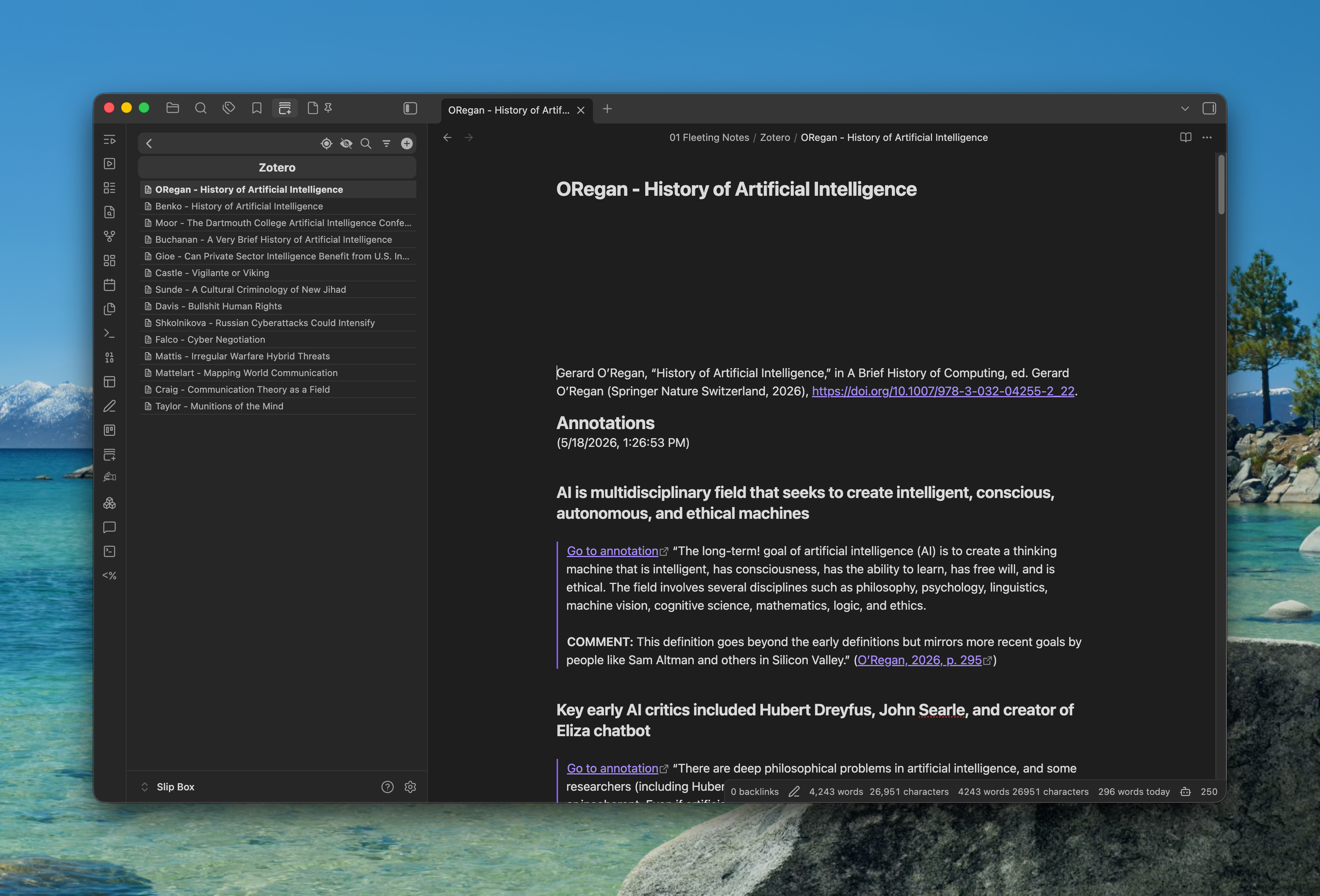
There are a couple extra plugins in Zotero and Obsidian that make this work. In Zotero, that is Zotero Better Notes. In Obsidian, I use the Zotero Integration community plugin to import the full citation and “cards” for each source.
Again, the process is very similar for articles from the web, YouTube videos, podcast episodes, and ebooks. The first two go to Readwise Reader where I highlight and add a tagline. Podcasts get “highlighted” and excepts taken using Snipd, which feeds into Readwise. I read ebooks on either Kindle or (preferably) KOReader side loaded onto my Kobo device. Taglines are added as “notes” on highlights. They all get pulled into Obsidian using the Readwise plugin. (There are ways to do all of this that don’t involve Readwise too if you prefer to avoid it. Let me know if you’re interested in the comments and, if so, I’ll write up a post on how to do it.)
AI Assistance & Augmentation
You might be saying, “We’re a long way into this post and you really haven’t used AI yet other than Google Scholar AI search and a Perplexity search.” Bingo! This is a human-first process. It is what I like to call “AI-in-the-loop” or “AI-standing-by.” (That rhymes, making me a poet, giving me even more humanities cred.)
I use AI to augment (not replace) a process I’ve honed over thirty years, with lots of experience and with a lot to show for it. That whole “judgement” and “taste” being “the moat” thing that everyone is on about? Yeah, this is where that comes from. Skip it and you’re a slippery slop slinger, which is worse than being a scruffy looking nerf herder.
Here are some ways I (sometimes) use AI to assist with my process:
“Coding” / “Tagging” the “Cards”
“Ah ha!” you say. “We’ve caught you using AI to do analysis for you!” But…nope.
In this case, AI assisted by helping me create the system I’d wanted inside Obsidian for years but couldn’t figure out how to make myself. So, instead, I had kludged together a system using to-do items and dataview queries that added any “card” with a to-do item mentioning another note to a dataview query that was dynamically populated in that other note. To-do items were the only way I could figure out for myself to reliably target the cards in the dataview query. (I know, I know. There’s probably another way. But I couldn’t figure it out and went with what I could get to work.)
There were several problems with this approach. First, the cards are not really “to-do items.” And I don’t need the false anxiety of a bunch of fake tasks just hanging around for no reason. Also, the system is not future proof. The related cards only show up dynamically when the page renders in preview mode. They do not live directly in the raw markdown document. In a future with no dataview, the connections disappear into the mists of digital history. Finally, too many dataview queries and/or too many responses to a query embedded in a note and Obsidian starts get sluggish. Again, these have to render ever single time you load the page.
So, I explained to AI what I really wanted and it walked me through how to set it up using a Templater template and script, both of which it created for me. Using this template/script along with Obsidian’s ability to “transclude” (i.e. embed) pieces of one note into another note, I achieve the trick of turning each item under a level 3 heading in a source note into an embedded card inside another note.
To code/tag a card, I run the Templater script, which provides a pop-up asking which other note I’d like to associate with the card. I search for what I need from a dynamically updating list, select, and hit enter. Then the level 3 heading of the card (which is its tagline) is pasted as a wiki link into the other note. Even if I no longer use Obsidian, the taglines and source note names will still live in those markdown files and I can find them again.
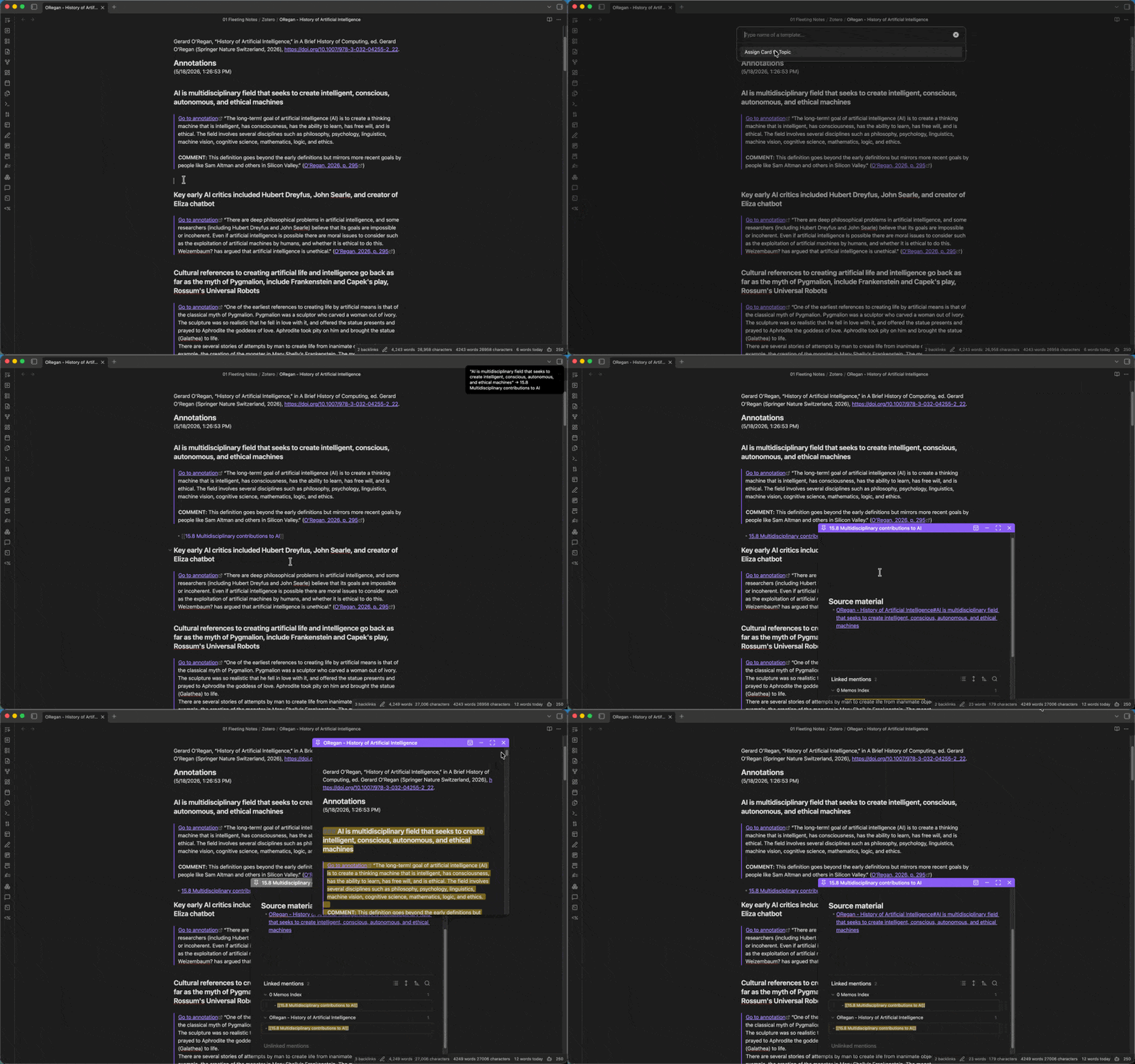
In this case, AI assisted by allowing me to create a simple system that automates copying and pasting across notes, which is otherwise a huge pain. That’s it. It’s not coding for me. Sorry haters. It’s just helping me do my work more easily and in a more future proof way.
Finding Related Notes
“There it is! He’s a fraud after all. He’s having AI pick the related notes for him!” Wrong again.
There’s a lot of talk about how “RAG is dead” lately. Traditional RAG has its limitations when you’re creating an “Agentic operating system” to replace yourself. But see, that’s not what we’re doing here. For what I’m doing, good old RAG is still very useful. And you should do what is useful for you in your work, not necessarily what some 25-year-old AI bro on the internet says is the new hotness.
Here are some examples of how I use semantic search to help me find connections between my notes that I may have overlooked.
Obsidian Copilot
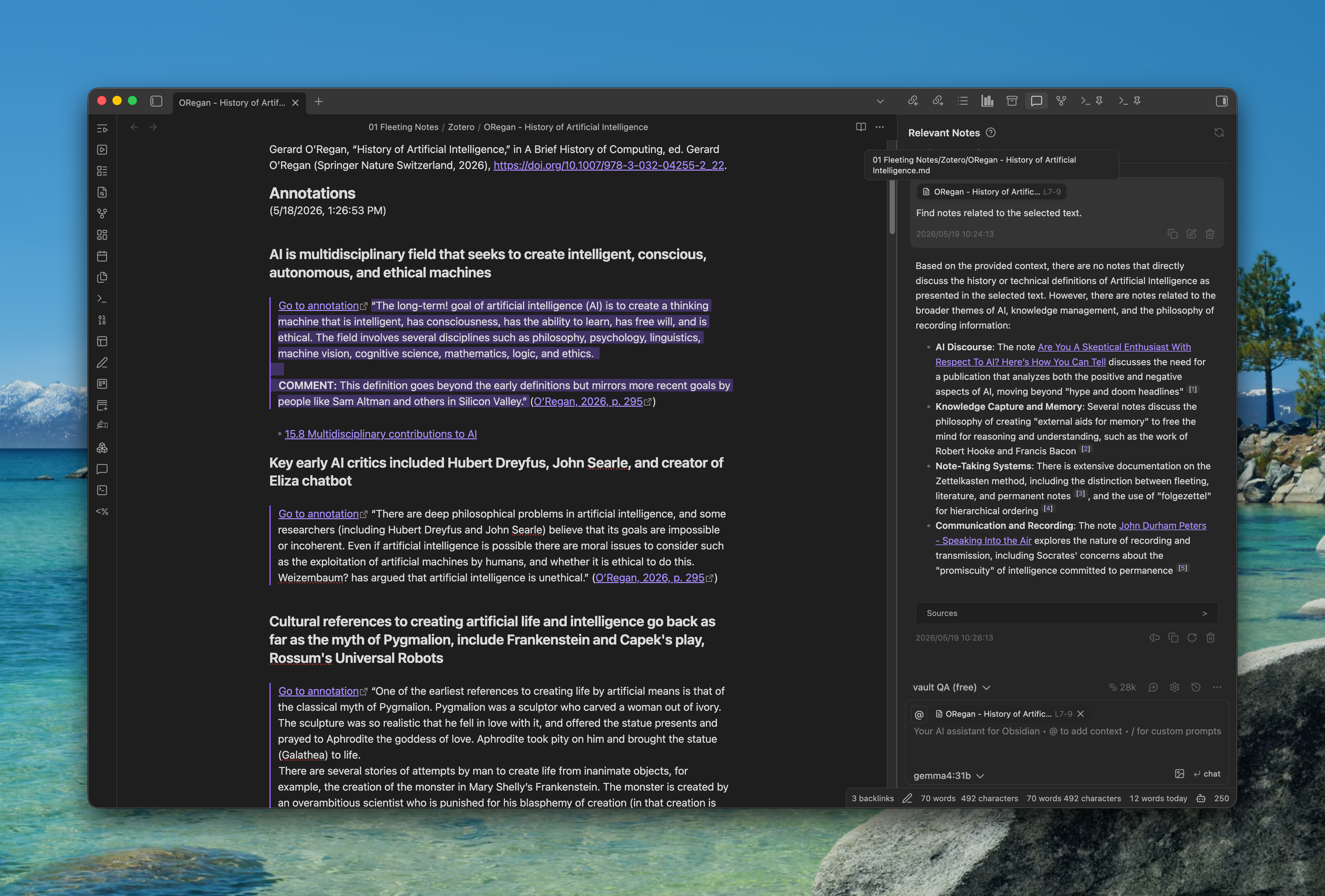
I can set an entire note as context or select just card text inside a note, pass that to AI, and ask what other notes in the vault might be related. That can be done with either local or cloud models using the Copilot plugin. (The free version is all you need.)
Claude Code + QMD & Graphify
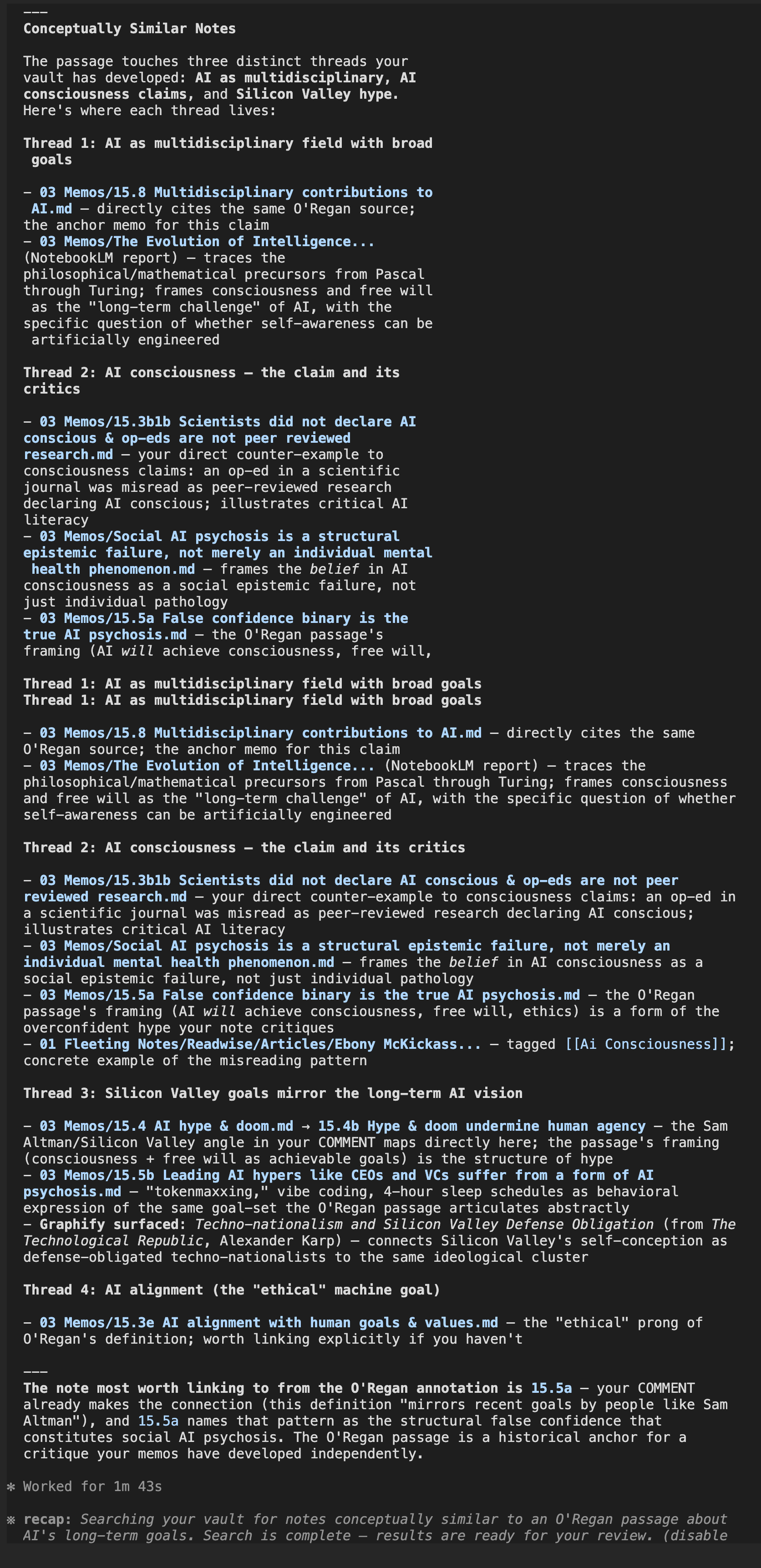
Claude Code uses a combination of QMD and Graphify to search the vault. QMD provides hybrid search, which is a combination of plane old keyword and semantic search together. Graphify creates a knowledge graph of the notes and allows AI to query the notes by traversing the connections between them. This tends to give more accurate results while consuming fewer tokens. It is more computationally expensive to create the graph in the first place and keep it updated, however.
I can use either cloud models—in this case I used Sonnet 4.6—or local models. (You can use Claude Code with local models alongside Ollama, just FYI.)
Mass Linking of Notes
Let’s cut to the chase. No, I’m not letting it just make whatever links it wants. Surely you’ve picked up the pattern by now, right?
One thing that I’ve wanted to do for a while is make sure I have notes for every person, organization, publication name, etc. I never get around to doing it, however, because it’s a lot of drudgery.
So in this example, I have asked Claude to enclose in square bracket wiki links all names of people found in the current note. The reason for doing this is that creating such links allows the creation of notes for those people with one click.
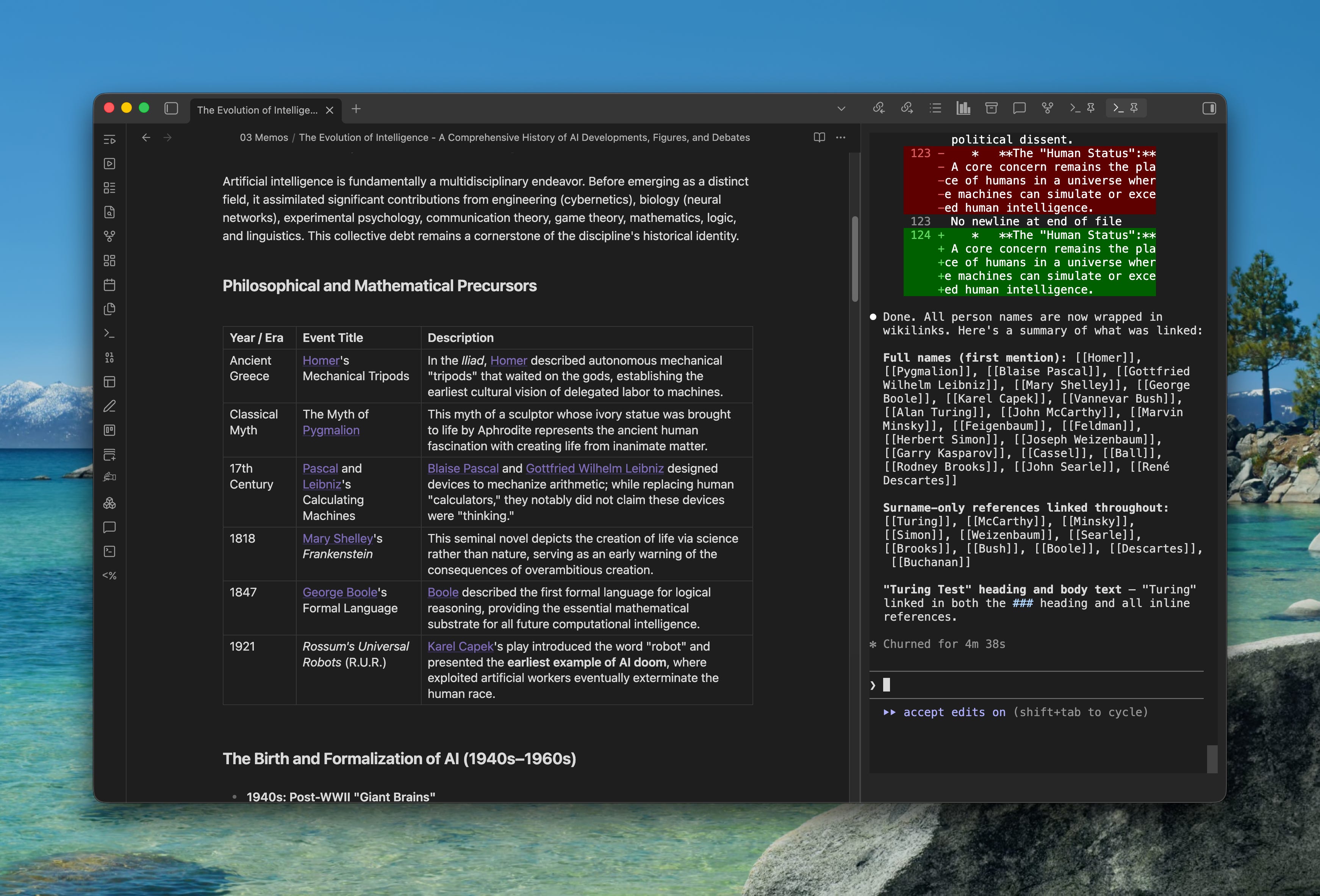
Once the note is created, Obsidian can itself find all linked and unliked mentions across the vault, allowing me to aggregate all content in the vault about a person, then read, compare and contrast, and write my own entry for them.
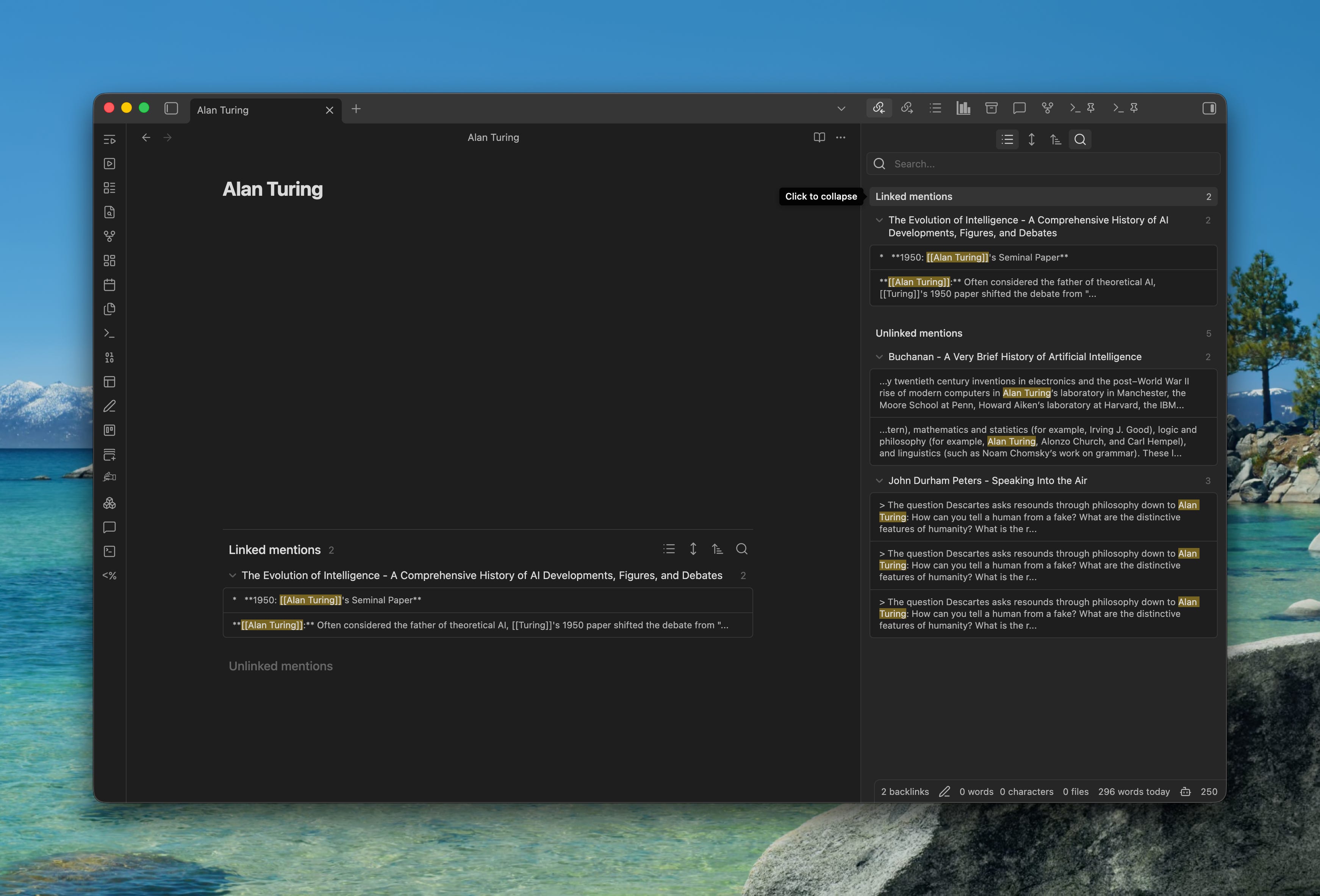
After the person’s page is created, Obsidian will show me all existing links to that page, as well as all mentions of the person’s name that are not directly linked yet. I can quickly click the “link” option under each unlinked mention in the right panel to create linked mentions. This automatically adds wiki links to all mentions of the person’s name in other notes without having to open those notes.
“Visualize” and “See” Notes
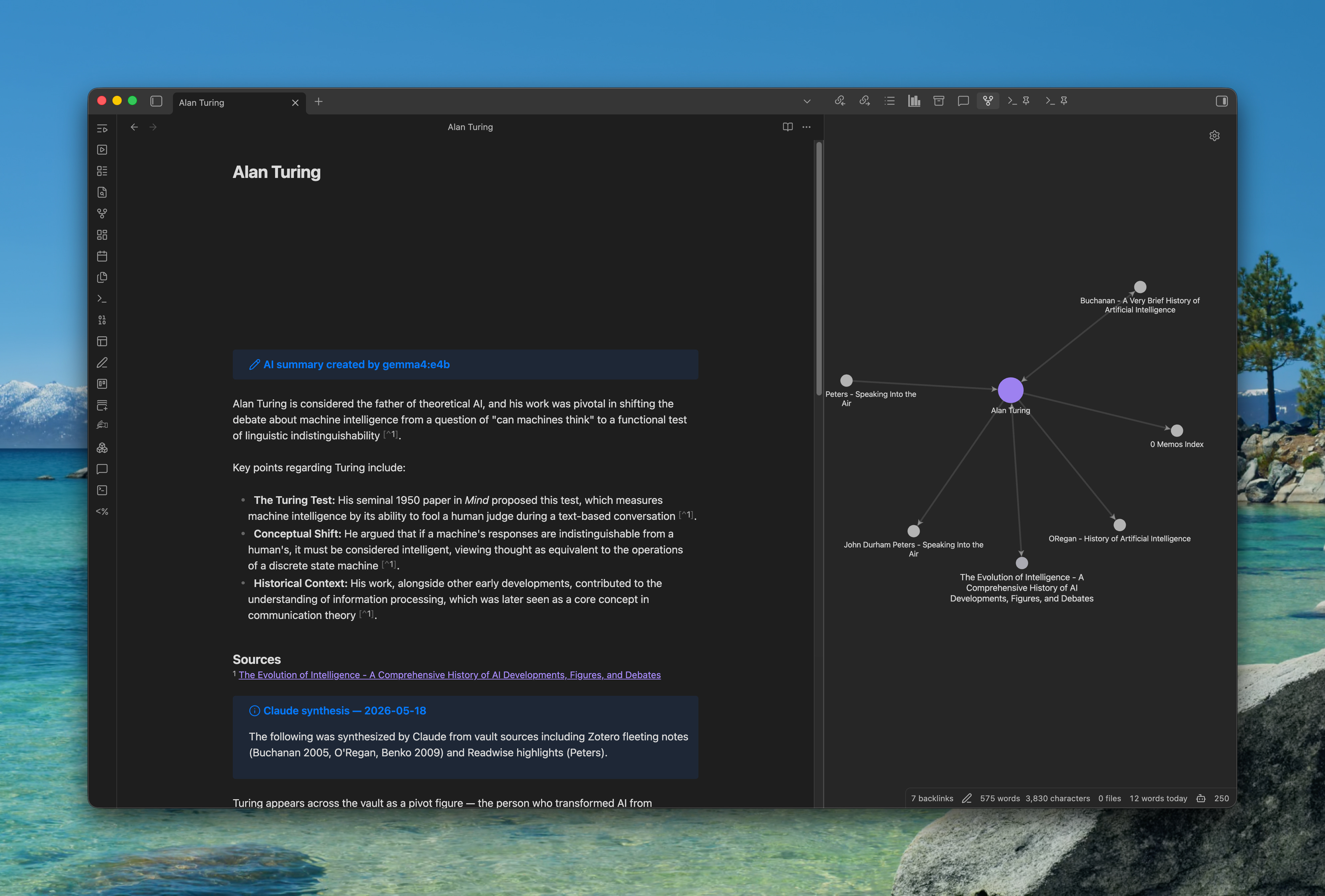
I will sometimes use AI to create high level summaries based on a list of specific notes given as context. In the example below, I created two summaries for Alan Turing based on all notes in my vault that mention him. One was made using a very small model running locally (Gemma4:e4b) and another using Sonnet 4.6 in Claude Code.
All AI generated content gets a prominent callout indicated that it is AI generated. Such content is meant to be a textual equivalent of the graph view, not text that counts as “writing” or that will go into a written product. It’s utilitarian, working text produced (not written) along the way.
Speaking of graph view, once I begin to link things, Obsidian’s own graph view can be helpful if used correctly. (Not the whole vault graph, which makes pretty pictures but is mostly useless, but the local graph per note. <= Not X, but Y…again! 😭)
Graphify also creates a human-readable graph in html that I can open in the browser.
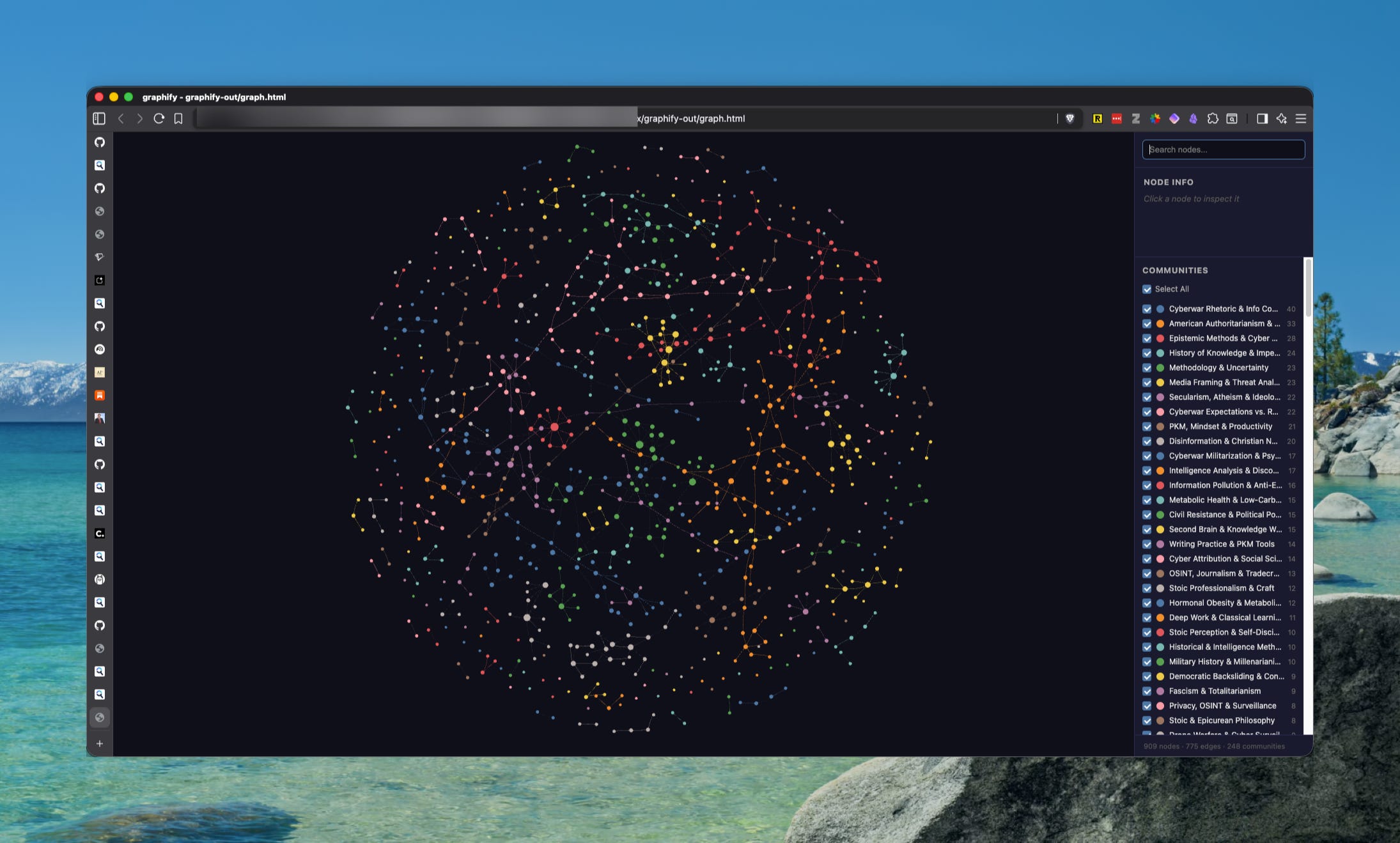
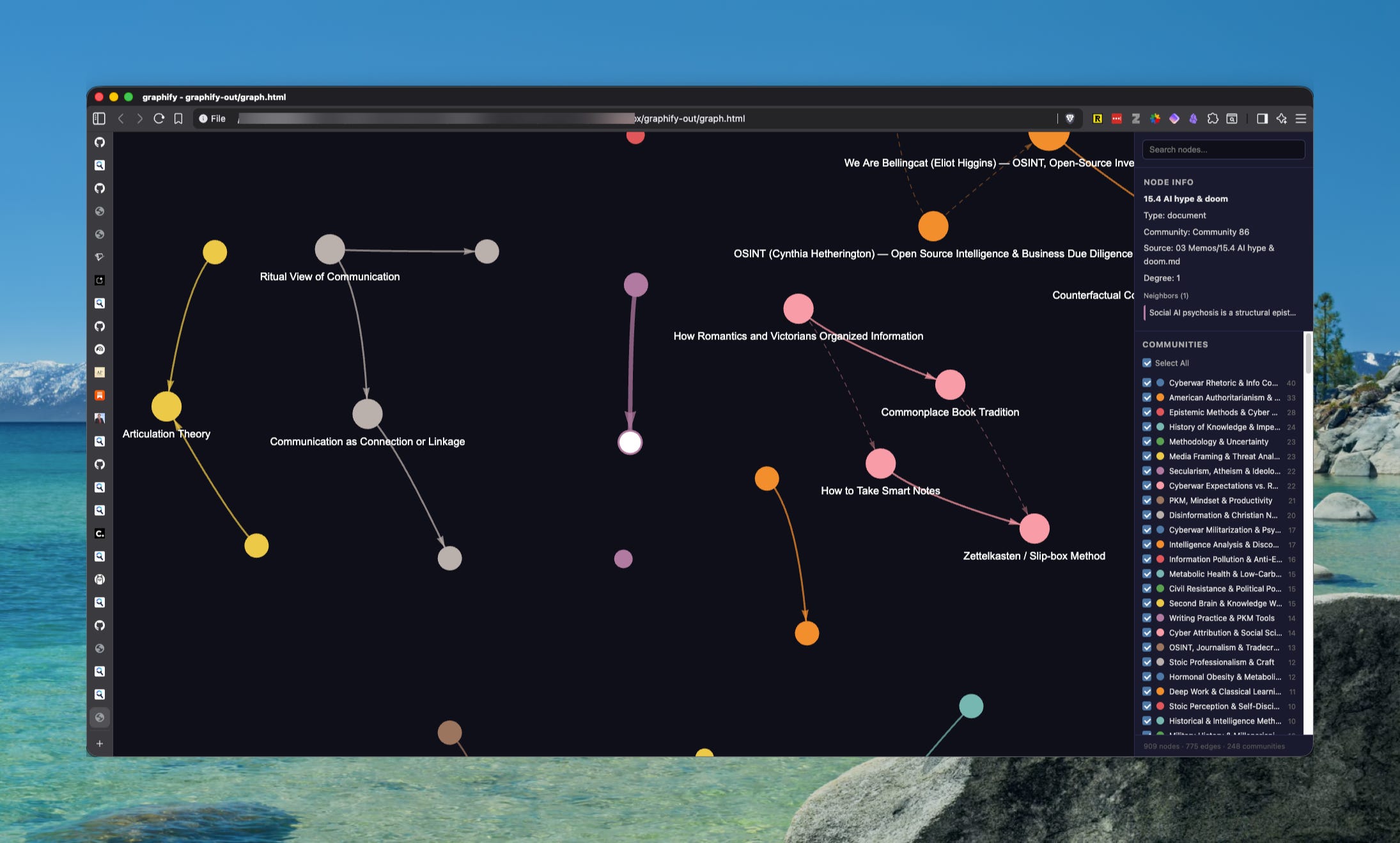
Taken together, AI summaries and graph view provide another window into the notes in my vault, which now number over 2,000.
Connecting to and Creating with Other Tools
Claude Code (or Gemini CLI, or OpenCode, or Codex, or Pi, etc.) can use command line interface (CLI) or model context protocol (MCP) tools to connect what’s in the Obsidian vault to almost any other tool. Just to give examples of what’s possible, I prompted Claude Code to use the NotebookLM MCP tools to have NotebookLM create an overview report based on the notes I imported from Zotero.
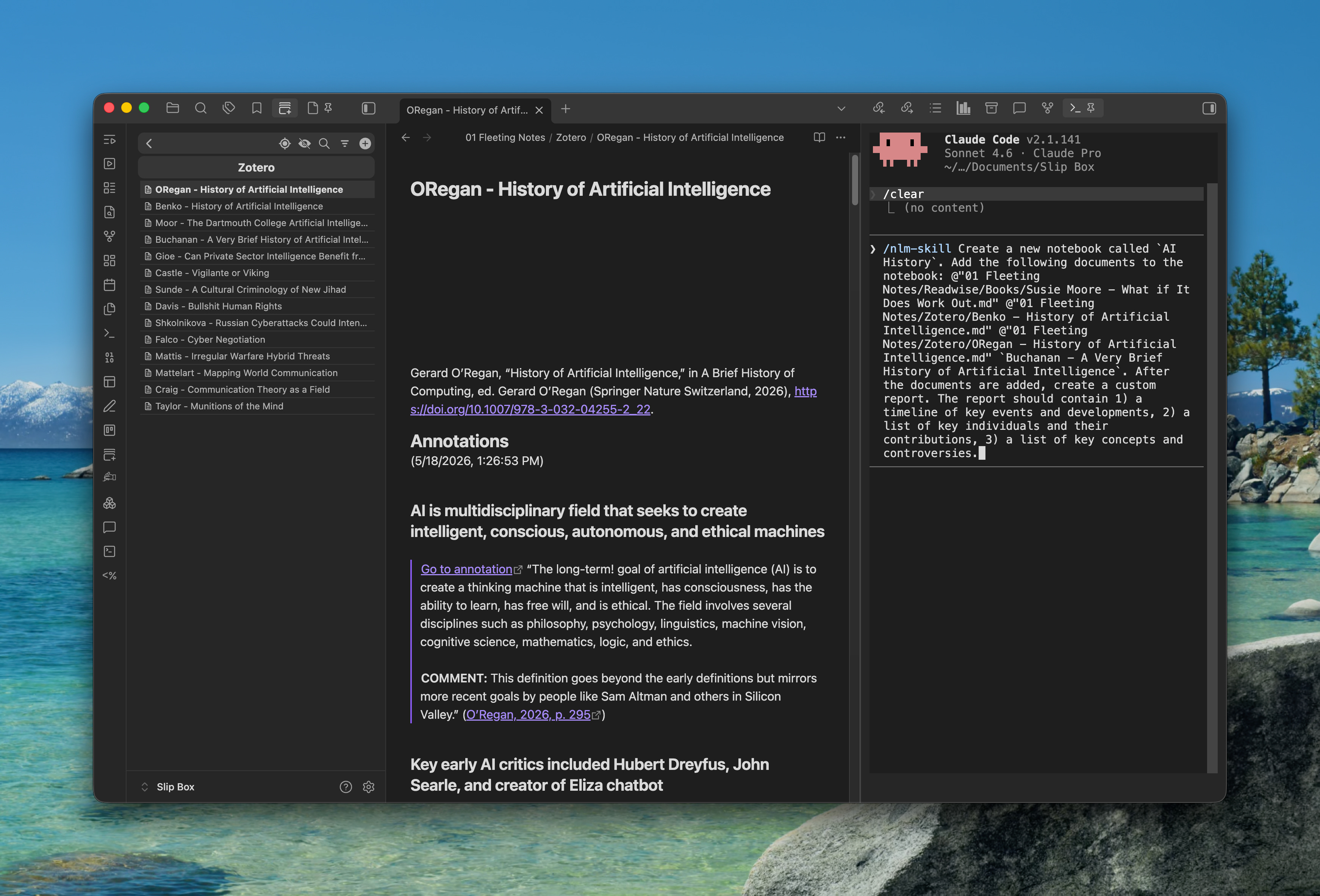
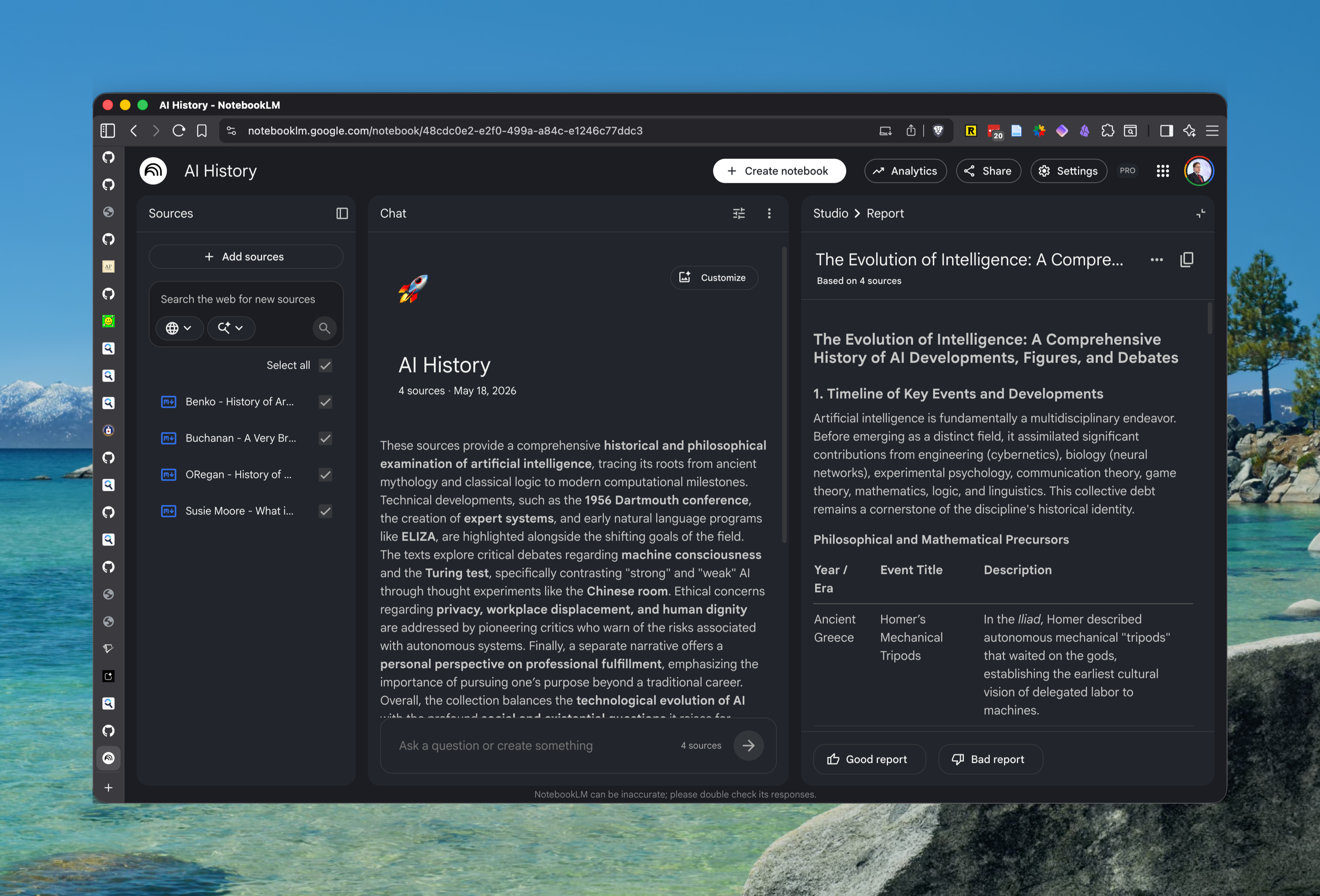
I then instructed Claude to download the report and add it as a note inside of Obsidian. That is the note I used in the earlier screenshot demonstrating how to have AI automatically add wiki links to all person names.
Again, this is not text that I would use in my writing. And when Claude created a new note with this text, it added the usual callout at the top indicating it was AI generated, including that it was made by NotebookLM and the date created.
Finally, as an extra experiment, I had Claude instruct NotebookLM to create an infographic focused just on explaining the components of expert systems, a form of AI popular in the 1980s and 1990s that was discussed in some detail in one of the sources.
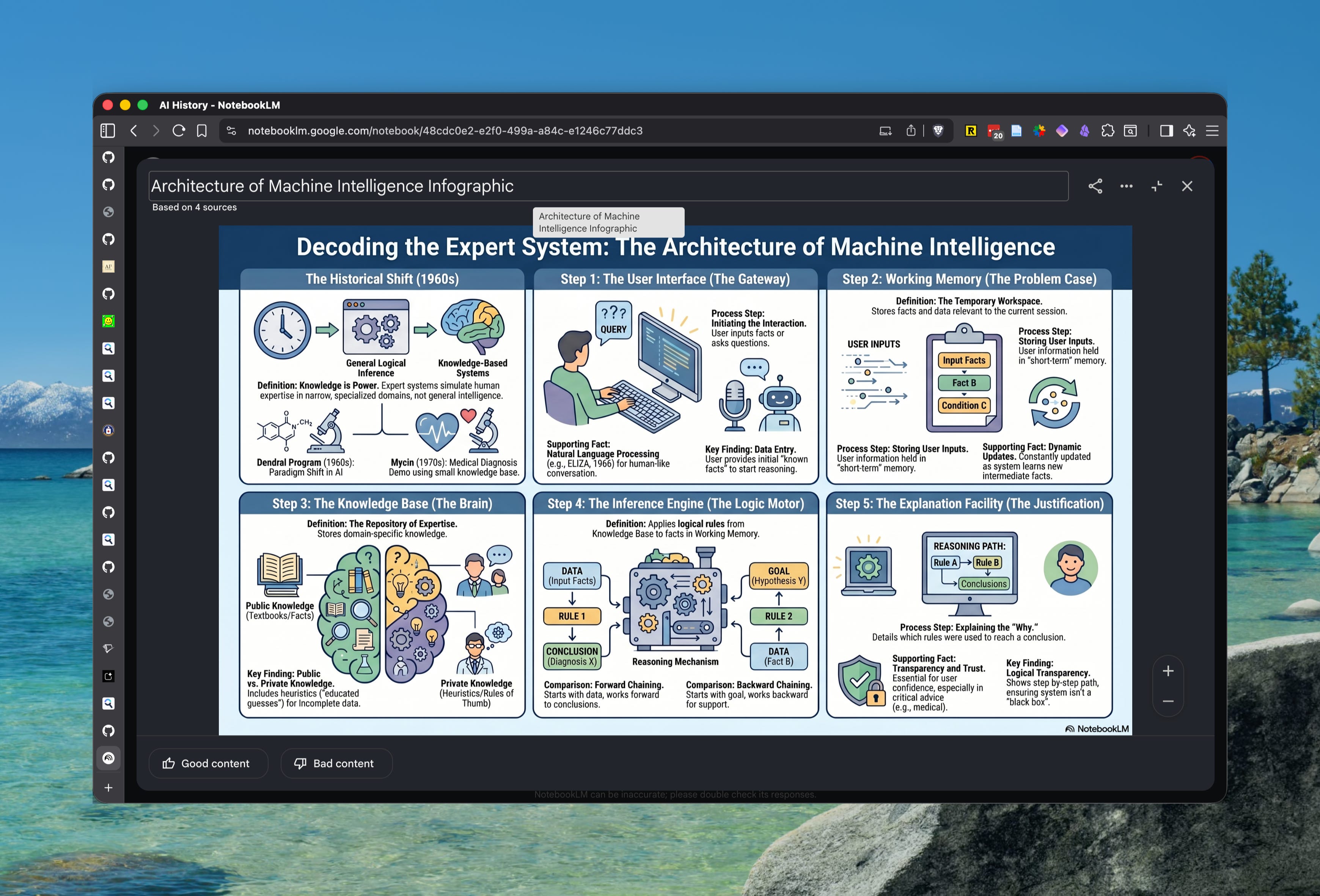
It’s an interesting result, though not one I’d use in this form. It’s too busy with entirely too much text that is hard to read. I don’t like the color scheme. But, then again, I didn’t give it much in the way of instruction other than “make an infographic about the components of expert systems.” With some refinement, however, this could be an image I use in a lecture slide.
Possible Objections
“People use this stuff because they can’t do the work themselves!”
I’m sure some do. But you can look at my years of publications to see I know how to do the work without AI. I don’t need AI. Even though it helps find connections, for example, the vast majority of the links I make between my notes are still manual and I still tend to think up the more interesting connections among seemingly unrelated notes the old fashioned way. But not always. So I genuinely appreciate when AI suggests a connection I hadn’t considered, that prompts me to think, and ends up being something valuable.
I had a crude sort of system for this in the very first version of Evernote, which allowed attaching persistent Boolean and REGEX searches to tags. After adding a new note, I would have Evernote search the current note with all the tag searches to suggest tags I might want to add but that I had missed. It was extremely helpful during my dissertation research. That was just keyword and pattern matching. AI adds the semantic and graph search element, which is even more powerful.
“But you could write those summaries yourself! This is just the LLM wiki! How do you know it’s not all hallucinated slop?”
I can and probably will, too. But it’s still helpful to ask, “Hey what do I have in my vault?,” see a response, and save that response as a sort of work product like a log file. It’s a record of what was asked and answered if nothing else.
It’s not the LLM wiki because the AI summary is only created if I ask for one, not automatically. The summary is not the final word and is grounded in my paraphrases and comments which remain grounded in their associated excerpts.
That is how I know whether it’s hallucinated slop or not. Because I read and took notes on the material! I read and take the notes, then sometimes have AI help me get my bearings again, step back and see the forest for the trees before continuing on my way.
“But you could make that infographic or hire someone!”
No, I really couldn’t. I have neither the skill nor time to make graphics like that. I’m a one person operation. I have to get so many things prepared by the end of August that nice-to-haves like that infographic will fall to the bottom of the list and never happen.
And there is no universe in which I would hire someone to make such graphics. Course prep comes with a generous $0 budget. So, the ability that AI offers to create such graphics and other artifacts—e.g. interactive HTML elements that I will embed in my lecture slides and that will allow students to “play” the interactive elements as they follow along—provide an extra level of quality that I would not have been able to provide otherwise due to lack of time and money.
Conclusion
In this post, I’ve walked you through my human-first process of taking notes from source documents. That process is based in the zettelkasten and commonplacing tradition stretching back to the ancient Greeks. It’s been used by scholars in the humanities, scientists, and other intellectuals for more than a thousand years. It’s tried, true, and effective.
But I’ve also attempted to show how I sometimes use AI to augment what I already do by creating tools I couldn’t create otherwise, handling drudge work that still needs doing, finding and visualizing connections, and creating materials from my notes that I would otherwise not create.
None of the AI component replaces me. None of the AI component is even necessary. I don’t need it to write or to do my work. Too many influencers are promoting the creation of end-to-end agentic workflows or “operating systems” that hand their work over to AI. For academics, researchers, and educators, that is unacceptable and unwise. My goal is not even “human-in-the-loop,” but rather, “AI-in-the-loop,” “AI-standing-by” to assist with my work. There are so many valuable, little uses of AI that are genuinely helpful. Don’t sleep on those while pursuing a fool’s quest for AI to do it all.
I hope that someone will get some benefit out of what I’ve described here even if you never take up any of the AI elements that I’ve described. Ultimately, you need to reflect on how you work best, your own processes and values, and find the uses of AI that fit for you. Those might be small, simple things. Or it might be no AI use at all and that is OK too.
If you would like to speak more about how to do this in your own work, please reach out in a DM. I love to help people with note taking and research technology.
I know some of you will say the existence of “not x, but y” and em dashes or whatever your bugaboo is indicates this post is AI slop. After all, if you’re not completely rejecting AI, you must not be able to write and think on your own! So, if you believe in and care about such things, this is for you.